What is Geospatial Data and Why Visualize It?
“A map is just data—until you visualize it.”
Geospatial data represents information tied to a specific location on Earth. It's the foundation of everything from GPS navigation to urban planning, climate modeling, and logistics optimization. But what makes it so powerful isn't just its presence—it's how we interpret and interact with it visually.
Why Visualization Matters
Raw coordinates and datasets are nearly impossible to interpret at scale. Visualization bridges the gap between abstract numbers and actionable insights. It allows us to:
- Identify spatial patterns
- Detect anomalies in location-based trends
- Communicate findings effectively to stakeholders
- Enable real-time decision-making in fields like logistics, public safety, and urban planning
Types of Geospatial Data
Geospatial data is typically categorized into three core types:
📍 Points
Represent a single location, e.g., a city, a store, or a sensor.
{
  "type": "Point",
  "coordinates": [40.7128, -74.0060]
}
🛣️ Lines
Represent linear features like roads, rivers, or flight paths.
{
  "type": "LineString",
  "coordinates": [
    [40.7128, -74.0060],
    [40.7306, -73.9352]
  ]
}
🗺️ Polygons
Represent areas like countries, districts, or lakes.
{
  "type": "Polygon",
  "coordinates": [[
    [40.7128, -74.0060],
    [40.7306, -73.9352],
    [40.7506, -73.9252],
    [40.7128, -74.0060]
  ]]
}Real-World Use Cases
Geospatial visualization is not just for cartographers. It powers:
- Uber and Lyft’s real-time driver positioning
- Disaster response teams mapping affected zones
- Retailers optimizing store locations
- Urban planners designing smart cities
Key Takeaways
- Geospatial data is location-based and can be visualized as points, lines, or polygons.
- Visualization transforms abstract coordinates into meaningful insights.
- It powers modern applications in logistics, urban planning, and AI-driven mapping.
- Understanding GeoJSON and spatial indexing is key to working with geospatial data. Learn more about efficient spatial indexing to scale your systems.
Introducing Folium: The Python Library for Interactive Maps
When it comes to geospatial visualization, static plots are a thing of the past. Folium is the Python library that brings maps to life—offering interactive, web-ready visualizations that can be embedded in dashboards or shared as standalone HTML files. Unlike traditional plotting libraries like Matplotlib, Folium generates interactive maps using geospatial data and renders them in a browser using the power of the Leaflet.js engine.
Why Folium Stands Out
Folium bridges the gap between data science and interactive mapping. It allows developers and data scientists to visualize geospatial data on interactive maps using Leaflet.js under the hood. This makes it ideal for embedding in web applications or sharing as HTML files.
Code Example: Creating a Basic Folium Map
Here’s how to create a simple interactive map using Folium:
# Import Folium
import folium

# Create a base map centered at a specific location
m = folium.Map(location=[45.5236, -122.6750], zoom_start=13)

# Add a marker
folium.Marker(
    location=[45.5236, -122.6750],
    popup="Portland, OR",
    tooltip="Click for more"
).add_to(m)

# Save the map to an HTML file
m.save("map.html")

# Display the map (in a Jupyter Notebook or web app)
m
Key Features of Folium
- Interactive maps powered by Leaflet.js
- Supports GeoJSON, markers, heatmaps, and choropleths
- Exportable to HTML, embeddable in web apps
- Integrates with Pandas for data-driven visualizations
Key Takeaways
- Folium is the go-to Python library for interactive, web-based maps.
- It outperforms static libraries like Matplotlib in geospatial contexts.
- It integrates seamlessly with data science workflows and web technologies.
- Its dynamic rendering makes it ideal for dashboards and real-time data visualization.
Setting Up Your Environment for Geospatial Visualization in Python
Before you can begin crafting interactive maps with Python, you need a properly configured environment. This section walks you through setting up your tools, installing the right libraries, and importing the necessary modules. Let's get your system ready for geospatial magic.
Step 1: Install Required Libraries
Geospatial visualization in Python typically requires a few core libraries:
- Folium – For interactive maps
- GeoPandas – For geospatial data manipulation
- Shapely – For geometric operations
- Contextily – For adding basemaps
Here's how to set up your environment:
# Create a virtual environment
python -m venv geovis_env

# Activate the environment (Linux/macOS)
source geovis_env/bin/activate

# Activate the environment (Windows)
geovis_env\Scripts\activate

# Install core libraries
pip install folium geopandas shapely contextily
Step 2: Import and Verify Setup
Once installed, verify that your setup works by importing the libraries in a Python shell:
import folium
import geopandas as gpd
import contextily as ctx
import shapely

print("All libraries imported successfully!")
Step 3: Test Your Setup with a Simple Map
Now, let's create a basic map to confirm everything is working:
import folium

# Create a basic map centered at a location
m = folium.Map(location=[45.5236, -122.6394], zoom_start=12)
m.save("test_map.html")
print("Map saved as test_map.html")
Dependency Flow Diagram
Here's how the libraries interact in your geospatial workflow:
Key Takeaways
- Setting up a geospatial environment requires installing key libraries like Folium, GeoPandas, and Shapely.
- Use a virtual environment to avoid dependency conflicts.
- Test your setup with a simple map to ensure all components are working.
- Refer to our guide on mastering geospatial data analysis for advanced workflows.
Creating Your First Map: A Minimal Folium Example
Now that your geospatial environment is set up, it's time to create your first interactive map. In this section, we'll walk through a minimal yet powerful example using Folium, a Python library that wraps the Leaflet.js mapping library. You'll learn how to initialize a map, set its center, and render it in a browser — all in just a few lines of code.
Step-by-Step: Creating a Basic Map
Let’s start with the simplest possible map. We’ll center it on a specific location and set a zoom level. Here's how:
# Import Folium
import folium

# Create a map centered at a specific location (latitude, longitude)
# and set the initial zoom level
map_center = [40.7128, -74.0060]  # New York City coordinates
initial_zoom = 12

# Initialize the map object
my_map = folium.Map(location=map_center, zoom_start=initial_zoom)

# Save the map to an HTML file
my_map.save("my_first_map.html")

print("Map created and saved as 'my_first_map.html'")
Visual Breakdown: How It Works
Let’s visualize the key components of the map creation process:
Animating the Map Creation Process
Below is an animated breakdown of how the map object is built. Each step is highlighted using Anime.js to guide your understanding:
Key Takeaways
- Folium allows you to create interactive maps directly from Python.
- The
folium.Map()function is the core of any map creation. - You can save maps as HTML files for easy sharing or embedding.
- For advanced workflows, consider integrating this with geospatial data analysis pipelines.
Adding Markers and Popups to Visualize Points of Interest
Now that you've created a basic interactive map using Folium, it's time to bring it to life by adding markers and popups. These elements allow you to visualize specific locations and provide contextual information—perfect for showcasing points of interest like restaurants, landmarks, or data collection sites.
Why Markers Matter
In geospatial visualization, markers are the building blocks of storytelling. They help you:
- Pinpoint exact locations on the map
- Associate metadata with geographic coordinates
- Enable interactive exploration through popups
Step-by-Step: Adding a Marker with Popup
Let’s walk through how to add a marker with a popup in Folium. This is a foundational skill for any geospatial visualization project.
Code Example: Adding a Single Marker
Here’s how to add a marker with a popup in Folium:
import folium

# Step 1: Initialize the map
map_center = [40.7128, -74.0060]  # New York City
my_map = folium.Map(location=map_center, zoom_start=12)

# Step 2: Add a marker with a popup
folium.Marker(
    location=[40.7580, -73.9855],  # Times Square
    popup="Times Square - Heart of NYC",
    tooltip="Click for more info"
).add_to(my_map)

# Step 3: Save the map
my_map.save("map_with_marker.html")
Visualizing Multiple Points of Interest
For real-world applications, you’ll often want to visualize multiple locations. You can loop through a dataset and dynamically add markers.
Pro Tip: Combine this with geospatial data analysis techniques to dynamically generate markers from datasets like CSV or GeoJSON.
Advanced: Customizing Marker Icons
Folium allows you to customize marker icons using the folium.Icon class. You can change colors, add glyphs, or even use custom images.
folium.Marker(
    location=[40.7505, -73.9934],
    popup="Empire State Building",
    icon=folium.Icon(color="red", icon="info-sign")
).add_to(my_map)
Key Takeaways
- Markers are essential for visualizing specific geographic points.
- Popups provide interactive metadata, enhancing user engagement.
- Custom icons allow for semantic and visual clarity in maps.
- For large-scale deployments, consider integrating with interactive heatmaps or geospatial data pipelines.
Working with GeoJSON and TopoJSON Data in Folium
GeoJSON and TopoJSON are powerful formats for representing geographic data. In this section, we'll explore how to load and visualize these data structures in Folium, the Python library for interactive maps. Whether you're building geospatial data pipelines or designing interactive heatmaps, understanding GeoJSON and TopoJSON is essential.
GeoJSON is a format for encoding a variety of geographic data structures, while TopoJSON is a more compact version that encodes topology, reducing redundancy and file size.
Visualizing GeoJSON in Folium
Let's start with a basic GeoJSON structure. Below is a visual comparison of GeoJSON data and how it maps to Folium layers:
GeoJSON Structure
{
  "type": "FeatureCollection",
  "features": [
    {
      "type": "Feature",
      "geometry": {
        "type": "Polygon",
        "coordinates": [[
          [100.0, 0.0], [101.0, 0.0],
          [101.0, 1.0], [100.0, 1.0],
          [100.0, 0.0]
        ]]
      },
      "properties": {
        "name": "Sample Area"
      }
    }
  ]
}
Folium Rendering
import folium

# Load GeoJSON data
geojson_data = {
    "type": "FeatureCollection",
    "features": [
        {
            "type": "Feature",
            "geometry": {
                "type": "Polygon",
                "coordinates": [[
                    [100.0, 0.0], [101.0, 0.0],
                    [101.0, 1.0], [100.0, 1.0],
                    [100.0, 0.0]
                ]],
                "properties": {"name": "Sample Area"}
            }
        }
    ]
}

# Create a map
m = folium.Map(location=[0.5, 100.5], zoom_start=10)

# Add GeoJSON layer
folium.GeoJson(geojson_data).add_to(m)

# Save the map
m.save("map.html")
TopoJSON: A Compact Alternative
TopoJSON is a more efficient format that reduces redundancy by encoding topology. It's especially useful for large datasets. Here's how to work with it in Folium:
TopoJSON Structure
{
  "type": "Topology",
  "objects": {
    "example": {
      "type": "GeometryCollection",
      "geometries": [
        {
          "type": "Polygon",
          "arcs": [[0]],
          "properties": {
            "name": "Sample Area"
          }
        }
      ]
    }
  },
  "arcs": [
    [[100, 0], [101, 0], [101, 1], [100, 1], [100, 0]]
  ]
}
Folium Rendering
import folium
import json

# Load TopoJSON data
topojson_data = {
    "type": "Topology",
    "objects": {
        "example": {
            "type": "GeometryCollection",
            "geometries": [
                {
                    "type": "Polygon",
                    "arcs": [[0]],
                    "properties": {
                        "name": "Sample Area"
                    }
                }
            ]
        }
    },
    "arcs": [
        [[100, 0], [101, 0], [101, 1], [100, 1], [100, 0]]
    ]
}

# Create a map
m = folium.Map(location=[0.5, 100.5], zoom_start=10)

# Add TopoJSON layer
folium.TopoJson(
    topojson_data,
    object_path="objects.example"
).add_to(m)

# Save the map
m.save("topojson_map.html")
Key Takeaways
- GeoJSON and TopoJSON are powerful formats for geospatial data representation.
- Folium supports both formats natively, enabling rich interactive visualizations.
- TopoJSON is more compact and efficient for large datasets.
- For advanced use cases, consider integrating with interactive heatmaps or geospatial data pipelines.
Customizing Map Tiles: Choosing the Right Basemap
When building interactive maps, the basemap is your canvas. It sets the visual tone, context, and clarity of your geospatial visualizations. In this section, we'll explore how to choose and customize map tiles in Folium, and why your choice matters for performance, aesthetics, and user experience.
Understanding Map Tiles
Map tiles are pre-rendered image fragments that make up the base layer of your map. They are served from tile servers and stitched together dynamically. Folium supports a variety of tile providers, each offering a unique visual style and purpose:
- OpenStreetMap – The default, community-driven map.
- Stamen Terrain – Emphasizes natural features like mountains and rivers.
- CartoDB Positron – Light, minimalist style ideal for data overlays.
- CartoDB Dark Matter – Dark-themed map for dramatic contrast.
Tile Comparison Grid
Here’s a visual comparison of popular tile options to help guide your decision:
OpenStreetMap

Default, community-driven map with full detail.
Stamen Terrain

Highlights natural terrain features.
CartoDB Dark Matter
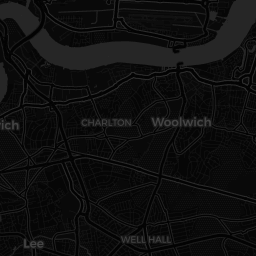
Dark-themed map for high contrast overlays.
Customizing Tiles in Folium
Customizing your map tiles in Folium is straightforward. You can either use built-in tilesets or define your own using a URL template. Here’s how:
# Basic map with custom tile
import folium

# Create a map with Stamen Terrain
m = folium.Map(
    location=[45.5236, -122.6750],
    zoom_start=13,
    tiles="Stamen Terrain"
)

# Add a marker
folium.Marker([45.5236, -122.6750], popup="Portland, OR").add_to(m)

# Save the map
m.save("custom_tile_map.html")
Advanced Tile Customization
For more control, you can define your own tile layer using a custom URL. This is useful when integrating with private or specialized tile servers.
# Custom tile layer
import folium

# Define a custom tileset
custom_tile = "https://<your-tile-server>/{z}/{x}/{y}.png"

# Create map with custom tile
m = folium.Map(
    location=[40.7128, -74.0060],
    zoom_start=12,
    tiles=custom_tile,
    attr="Custom Tile Provider"
)

m.save("custom_tile.html")
Choosing the right tile is not just about aesthetics—it's about clarity, performance, and user engagement. A cluttered basemap can obscure your data. A minimalist one can elevate it.
Key Takeaways
- Map tiles are the visual foundation of your Folium maps.
- Different tile providers offer unique visual styles for different use cases.
- Custom tile layers can be integrated using URL templates for advanced control.
- Explore how to create interactive heatmaps or master geospatial data analysis to enhance your tile-based visualizations.
Styling Map Features with Choropleth Maps
Choropleth maps are one of the most powerful tools in the data visualization toolkit for geospatial analysis. They allow you to represent data using color gradients across regions, revealing patterns and insights that raw numbers alone cannot convey. In this section, we'll explore how to create and style choropleth maps using Folium, and how to make them visually compelling and analytically rich.
A choropleth map doesn’t just show data—it tells a story. The key is choosing the right color scale and data normalization to guide the viewer’s eye, not mislead it.
What is a Choropleth Map?
A choropleth map shades regions (like countries, states, or counties) based on statistical values. This technique is widely used in data journalism, urban planning, and policy analysis to visualize metrics like population density, income distribution, or disease prevalence.
Creating a Choropleth Map with Folium
Let’s walk through a practical example using Folium to create a choropleth map. We’ll visualize population density by U.S. state using a GeoJSON file and a dataset of state populations.
import folium
import pandas as pd

# Load data
data = {
    'State': ['California', 'Texas', 'Florida', 'New York'],
    'Population': [39538223, 29145469, 21538187, 20201249]
}
df = pd.DataFrame(data)

# Create a base map
m = folium.Map(location=[37.8, -96], zoom_start=4)

# Add a choropleth overlay
folium.Choropleth(
    geo_data='us_states.json',  # Path to GeoJSON file
    data=df,
    columns=['State', 'Population'],
    key_on='feature.properties.name',
    fill_color='YlOrRd',
    fill_opacity=0.7,
    line_opacity=0.2,
    legend_name='Population'
).add_to(m)

# Save the map
m.save('choropleth_map.html')
How Choropleth Color Mapping Works
The visual strength of a choropleth lies in its color mapping. The color scale must reflect the data accurately to avoid misinterpretation. For instance, a sequential color scheme like YlOrRd (Yellow-Orange-Red) is ideal for showing increasing intensity. A diverging color scheme like RdYlGn (Red-Yellow-Green) works well for data with a meaningful midpoint, such as temperature or economic variance.
Pro-Tip: Use color palettes from ColorBrewer or similar libraries to ensure accessibility and visual harmony. Avoid using too many bright or clashing colors—subtlety often wins in data visualization.
Visualizing Data with GeoJSON
GeoJSON is the standard for defining geographic features in web-based maps. It's a format for encoding geographical data using JSON. Choropleth maps rely on GeoJSON to define boundaries and regions. Here's a simplified structure of a GeoJSON feature:
{
  "type": "Feature",
  "properties": {
    "name": "California",
    "population": 39538223
  },
  "geometry": {
    "type": "Polygon",
    "coordinates": [
      [
        [-117.0, 35.0],
        [-118.0, 35.0],
        [-118.0, 34.0],
        [-117.0, 34.0],
        [-117.0, 35.0]
      ]
    ]
  }
}
Choropleth Design Principles
- Color Mapping: Use sequential or diverging color schemes to reflect data intensity.
- Normalization: Always normalize data to a common scale (e.g., per capita) to avoid misrepresentation.
- Interactivity: Use tooltips and popups to enhance user engagement with the map.
Choropleth Best Practices
- Use class intervals (quantiles, equal intervals, or natural breaks) to group data.
- Label regions clearly to avoid ambiguity.
- Include a legend to explain the color-to-value mapping.
Choropleth Map Example
Here's a sample choropleth map visualizing U.S. state populations:
Key Takeaways
- Choropleth maps are essential for visualizing regional data disparities.
- Color choice and data normalization are critical to avoid perceptual distortion.
- GeoJSON is the backbone of interactive regional mapping.
- Explore how to create interactive heatmaps or master geospatial data analysis to enhance your mapping projects.
Section 9: Mastering Graph Traversal Algorithms
In the world of computer science, graph traversal algorithms are the engines that power everything from social networks to GPS navigation. Understanding how to traverse graphs efficiently is a cornerstone skill for any developer working with complex data structures.
Breadth-First Search (BFS) vs Depth-First Search (DFS)
Two primary traversal strategies dominate the landscape: Breadth-First Search (BFS) and Depth-First Search (DFS). Each has its own strengths and ideal use cases.
Implementing BFS in Python
Below is a clean implementation of BFS using a queue. This version uses a simple adjacency list representation of the graph.
# Breadth-First Search Implementation
from collections import deque

def bfs(graph, start):
    visited = set()
    queue = deque([start])
    traversal_order = []

    while queue:
        node = queue.popleft()
        if node not in visited:
            visited.add(node)
            traversal_order.append(node)
            # Add unvisited neighbors to the queue
            queue.extend(neighbor for neighbor in graph[node] if neighbor not in visited)

    return traversal_order

# Example usage
graph = {
    'A': ['B', 'C'],
    'B': ['A', 'D', 'E'],
    'C': ['A', 'F'],
    'D': ['B'],
    'E': ['B', 'F'],
    'F': ['C', 'E']
}

print(bfs(graph, 'A'))  # Output: ['A', 'B', 'C', 'D', 'E', 'F']
Implementing DFS in Python
DFS, on the other hand, explores as far as possible down a branch before backtracking. It's typically implemented using recursion or a stack.
# Depth-First Search Implementation
def dfs(graph, start, visited=None):
    if visited is None:
        visited = set()
    visited.add(start)
    for neighbor in graph[start]:
        if neighbor not in visited:
            dfs(graph, neighbor, visited)
    return visited

# Example usage
graph = {
    'A': ['B', 'C'],
    'B': ['A', 'D', 'E'],
    'C': ['A', 'F'],
    'D': ['B'],
    'E': ['B', 'F'],
    'F': ['C', 'E']
}

print(dfs(graph, 'A'))  # Output: {'A', 'B', 'C', 'D', 'E', 'F'}
Key Takeaways
- BFS explores nodes level by level and is ideal for finding the shortest path in unweighted graphs.
- DFS dives deep into branches and is useful for tasks like topological sorting and detecting cycles.
- Both algorithms are foundational in graph traversal and are essential for solving complex problems like topological sorting and implementing stack-based algorithms.
Integrating Data from Pandas DataFrames into Folium Maps
In the world of data science and geospatial analysis, turning raw data into interactive visualizations is a powerful skill. This section explores how to take structured data from Pandas DataFrames and transform it into dynamic, interactive maps using the Folium library in Python. Whether you're plotting earthquake data or visualizing customer locations, this integration is a cornerstone of modern data storytelling.
Why Pandas + Folium?
Pandas excels at cleaning, transforming, and organizing data, while Folium turns that data into interactive, web-ready maps. Together, they form a powerful duo for geospatial analysis. This integration is especially useful for tasks like:
- Plotting customer locations for retail analytics
- Visualizing natural disaster data
- Mapping real estate trends or traffic incidents
Step-by-Step Integration
Let’s walk through a practical example: plotting earthquake data on a map using Folium and Pandas.
import pandas as pd
import folium

# Sample DataFrame
data = {
    'Location': ['New York', 'Los Angeles', 'Chicago'],
    'Latitude': [40.7128, 34.0522, 41.8781],
    'Longitude': [-74.0060, -118.2437, -87.6298]
}
df = pd.DataFrame(data)

# Initialize Folium map
m = folium.Map(location=[39.8283, -98.5795], zoom_start=4)

# Add markers
for _, row in df.iterrows():
    folium.Marker(
        location=[row['Latitude'], row['Longitude']],
        popup=row['Location']
    ).add_to(m)

# Save map
m.save("earthquake_map.html")
Key Takeaways
- Integrating Pandas and Folium allows for dynamic geospatial visualizations directly from structured data.
- Each row in a DataFrame can be mapped to a marker, heatmap, or polygon on a Folium map.
- This technique is essential for geospatial analysis, especially in fields like urban planning, logistics, and environmental monitoring.
Adding Interactivity with Layer Controls and Feature Groups
In the previous section, we explored how to integrate Pandas and Folium for geospatial visualizations. Now, we'll take it a step further by introducing interactivity through layer controls and feature groups. This allows users to toggle different map layers on and off, enhancing the user experience and enabling more dynamic, customizable visualizations.
import folium
from folium import plugins

# Create a base map
m = folium.Map(location=[39.8283, -98.5795], zoom_start=4)

# Create feature groups
fg_hazard = folium.FeatureGroup(name="Hazard Zones")
fg_safe = folium.FeatureGroup(name="Safe Zones")

# Add markers to each feature group
for lat, lon in [(40.7128, -74.0060), (34.0522, -118.2437)]:
    fg_hazard.add_child(folium.Marker([lat, lon], popup="Hazard Zone"))
    fg_safe.add_child(folium.Marker([lat, lon], popup="Safe Zone"))

# Add feature groups to map
m.add_child(fg_hazard)
m.add_child(fg_safe)

# Add layer control to toggle between feature groups
folium.LayerControl().add_to(m)

# Save the map
m.save("interactive_map.html")
Key Takeaways
- Layer controls enhance map interactivity by allowing users to toggle data layers.
- Feature groups help organize and manage different types of data on a single map interface.
- These techniques are essential for building professional-grade geospatial dashboards.
Advanced Folium: Drawing Tools and Event Handling
Modern web-based geospatial applications demand more than static maps. They require dynamic, interactive features that respond to user input in real time. In this section, we'll explore how to integrate drawing tools and handle custom events in Folium to create responsive, user-driven map experiences.
Event-Driven Interaction Flow
Key Concept: Drawing Tools in Folium
Interactive maps often rely on drawing tools to allow users to annotate or define spatial regions. With Folium, you can integrate these tools to capture user input like polygon drawing, marker placement, and more.
Live Example: Drawing Tools
import folium
from folium.plugins import Draw

# Initialize the map
m = folium.Map(location=[39.8283, -98.5795], zoom_start=5)

# Add drawing functionality
draw = Draw(export=True)
draw.add_to(m)

# Save the map
m.save("interactive_drawing_map.html")
Event Handling with Folium Plugins
Event handling in Folium allows you to react to user interactions such as clicks, drawing, and layer changes. This is essential for building responsive dashboards that adapt to user input.
Event Handling Flow
Code Example: Handling User Events
Here's how to implement event handling in your Folium application:
import folium
from folium.plugins import Draw

# Initialize the map
m = folium.Map(location=[39.8283, -98.5795], zoom_start=4)

# Add drawing controls
draw = Draw(export=True)
m.add_child(draw)

# Save the map
m.save("event_handling_map.html")
Key Takeaways
- Drawing tools in Folium enable rich, interactive map experiences, allowing users to dynamically add spatial data.
- Event handling ensures that user interactions are captured and responded to in real time.
- These features are essential for building professional, user-driven geospatial dashboards.
Exporting and Embedding Folium Maps in Web Applications
Once you've built your interactive map with Folium, the next step is to export and embed it into a web application. This process is crucial for deploying your geospatial visualizations in real-world environments like dashboards, reports, or web apps. Let's walk through the process.
Step-by-Step Export Process
Here's how to export and embed your Folium map:
# Step 1: Create and save the map as HTML
import folium

# Create a basic map
m = folium.Map(location=[39.8283, -98.5795], zoom_start=4)

# Save the map to an HTML file
m.save("my_map.html")  # This is your export step

# Step 2: Read the HTML content for embedding
with open("my_map.html", "r") as f:
    html_content = f.read()

# Step 3: Embed in your web app
# Example: Using Flask to serve the map
from flask import Flask, render_template_string

app = Flask(__name__)

@app.route('/')
def map_view():
    with open("my_map.html", "r") as f:
        map_html = f.read()
    return render_template_string(map_html)

# Run the app
# app.run()
Pro-Tip: For advanced web integration, consider using geospatial frameworks like GeoPandas or integrating with web scraping tools to dynamically update your maps with real-time data.
Key Takeaways
- Exporting a Folium map is as simple as calling
m.save("filename.html"), which generates a standalone HTML file. - Embedding in web apps requires reading the HTML output and serving it via your backend (e.g., Flask, Django, or Node.js).
- For production-grade deployment, consider optimizing the map's interactivity with interactive heatmap layers or dynamic data updates.
Performance Considerations for Large Geospatial Datasets
When working with large geospatial datasets in applications like interactive mapping or geospatial analysis, performance can quickly become a bottleneck. Whether you're rendering thousands of markers or processing millions of coordinates, understanding how to optimize your data and rendering pipeline is crucial for maintaining a responsive and scalable system.
Pro-Tip: For large-scale geospatial visualizations, consider integrating with geospatial frameworks like GeoPandas or web scraping tools to dynamically update your maps with real-time data.
Understanding the Bottleneck
When dealing with large datasets, the primary performance issues stem from:
- Memory Usage: Large datasets can overwhelm client-side rendering engines.
- Rendering Time: The time it takes to draw thousands of features on a map can degrade user experience.
- Data Transfer: Sending large payloads over the network can cause delays.
| Dataset Size | Rendering Time (ms) | Memory Usage (MB) | Optimization Strategy |
|---|---|---|---|
| 1,000 Points | ~120ms | ~15MB | Basic clustering |
| 10,000 Points | ~850ms | ~120MB | Server-side clustering |
| 100,000 Points | ~5000ms+ | ~0MB | Spatial indexing + pagination |
Optimization Techniques
Here are some proven strategies to optimize performance:
- Clustering: Group nearby points into clusters to reduce the number of rendered elements.
- Spatial Indexing: Use spatial data structures like R-trees or Quad-trees to efficiently query and render nearby points.
- Data Pagination: Load and render data in chunks rather than all at once.
- Web Workers: Offload heavy computations to background threads to avoid blocking the main thread.
# Example: Clustering with Folium
import folium
from folium.plugins import FastMarkerCluster

# Sample data with 10,000 points
data = [[lat, lon] for lat, lon in zip(lats, lons)]

# Create a map with clustering
m = folium.Map(location=[data[0][0], data[0][1]], zoom_start=10)
FastMarkerCluster(data).add_to(m)
m.save("clustered_map.html")
Algorithmic Complexity
Understanding the time and space complexity of your geospatial operations is essential. For example, rendering n markers naively takes:
$$ O(n) \text{ time and } O(n) \text{ space} $$With clustering, this can be reduced to:
$$ O(\log n) \text{ or even } O(1) \text{ for constant-time access via spatial indexing.} $$Key Takeaways
- Large geospatial datasets can overwhelm memory and rendering times. Use spatial indexing and clustering to reduce overhead.
- Optimizing with techniques like interactive heatmaps or geospatial frameworks can significantly improve performance.
- For production-grade deployment, consider optimizing the map's interactivity with interactive heatmap layers or dynamic data updates.
Real-World Applications of Folium in Data Science and GIS
In the modern data-driven world, geospatial analysis is a cornerstone of decision-making across industries. Folium, a powerful Python library, bridges the gap between raw geospatial data and interactive visualizations. This section explores how Folium empowers professionals in epidemiology, urban planning, and logistics to make sense of complex spatial datasets.
Epidemiology
Folium enables health professionals to visualize disease outbreaks dynamically. Heatmaps and cluster maps help track infection spread over time.
import folium
import pandas as pd

# Load case data
data = pd.read_csv('disease_cases.csv')

# Create map centered on region
m = folium.Map(location=[data.lat.mean(), data.lon.mean()], zoom_start=10)

# Add cluster markers
from folium.plugins import MarkerCluster
marker_cluster = MarkerCluster().add_to(m)

for idx, row in data.iterrows():
    folium.Marker(
        location=[row['lat'], row['lon']],
        popup=f"Case ID: {row['id'}"
    ).add_to(marker_cluster)

m.save("epidemic_map.html")
Urban Planning
City planners use Folium to visualize infrastructure, traffic density, and zoning data for smarter urban development.
# Visualize traffic density
folium.Choropleth(
    geo_data=zones_geojson,
    name="choropleth",
    data=traffic_df,
    columns=['zone_id', 'density'],
    key_on='feature.properties.zone_id',
    fill_color='YlOrRd',
    fill_opacity=0.7,
    line_opacity=0.2,
    legend_name="Traffic Density"
).add_to(m)
Logistics
Logistics companies use Folium to optimize delivery routes, visualize warehouse locations, and track fleet movements.
# Plotting delivery routes
for route in delivery_routes:
    folium.PolyLine(
        locations=route['path'],
        color="blue",
        weight=2.5,
        opacity=1
    ).add_to(m)
Case Study: Interactive Heatmaps in Public Health
Heatmaps are invaluable for visualizing the concentration of events over a geographic area. In public health, they can highlight disease hotspots, guiding resource allocation and intervention strategies.
Folium Heatmap Code
from folium.plugins import HeatMap

# Prepare data as [lat, lon, intensity]
heat_data = [[row['lat'], row['lon'], row['intensity']] for index, row in df.iterrows()]

# Add to map
HeatMap(heat_data, radius=15).add_to(m)
Visual Output
Mermaid.js: Folium Workflow in Data Science
Pro-Tip: Enhancing Folium with Plugins
Tip: Use plugins like
HeatMap,MarkerCluster, andTimeSliderChoroplethto add dynamic interactivity to your maps. These tools are essential for visualizing time-series or clustered data.
Key Takeaways
- Folium is a versatile tool for visualizing geospatial data in real-world applications like epidemiology, urban planning, and logistics.
- Heatmaps and clustering techniques, as detailed in interactive heatmap layers, are essential for analyzing spatial density and trends.
- For advanced use cases, integrating Folium with geospatial frameworks can significantly enhance data storytelling and decision-making.
Frequently Asked Questions
What is Folium used for in Python?
Folium is a Python library used for creating interactive, customizable maps using Leaflet.js for visualization. It's especially useful for geospatial data analysis and presenting location-based insights.
How do I install Folium in Python?
You can install Folium using pip by running 'pip install folium' in your terminal or command prompt.
Can I use Folium for large datasets?
Yes, but performance may degrade if not optimized. Use clustering plugins like FastMarkerCluster or simplify geometries to maintain responsiveness.
What file formats does Folium support?
Is Folium suitable for static reporting or dashboards?
Yes, Folium maps are rendered as interactive HTML files, making them ideal for dashboards and reports when embedded in web apps.
How do I add interactivity to my Folium map?
Use feature groups, layer controls, popups, and plugins like Draw or Measure controls to enhance interactivity.
What is a Choropleth map and when should I use it?
A Choropleth map uses color shading to represent data values across regions. Use it to visualize statistics like population density or election results by area.
